
Beer Scoring
Assessing the quality of real ale served in pubs and clubs is an important job that CAMRA members do. We are able to let publicans or bar managers know when their beer quality is suffering, and possibly offer advice about improving the quality. We can also let them know that they are doing a good job when their beer quality is excellent, as good feedback is important too.
We also use the beer scoring system to get shortlists of pubs selling the best quality beer for both inclusion in CAMRA’s annual Good Beer Guide book, and also for the Pub of the Year awards.
For those that haven’t tried scoring beers yet, it’s not as complicated as it sounds. When you’ve been doing it for a while, it just becomes second nature. You don’t need to be an expert, you just need to get a feel for different levels of beer quality (which you probably have already) and assign a score based on our chart below.
The scores can then be entered from within the pub’s listing in the online pub guide on CAMRA’s national website. If you are not able to or comfortable in using websites, scores for Shrewsbury and West Shropshire pubs can either be emailed to our Beer Score Coordinator, or written down on paper and given to them in person at a meeting or social. They will then put your scores in the system for you.
What Are Beer Scores?
When CAMRA members drink real ale in a pub or club, they can assess the quality of the beer and find out where it lies in a predefined quality chart. The chart has a range of different quality levels which are given scores between 0 and 5, where higher quality is given a higher number. Half numbers can be used to give more accurate scores.
So for each different beer that is drunk, a quality score can be given to it. That number can then be recorded in the pub’s page in the online pub guide on CAMRA’s national website, and then this score automatically goes into CAMRA’s National Beer Scoring System (NBSS).
By downloading information from this system, the branch’s NBSS Coordinator can calculate average beer scores for each pub in the branch area. These average scores enable pubs to be ranked in terms of the average quality of their beer.
Beer Score Chart
PLEASE NOTE THAT A NEW SCORING SYSTEM IS IN PLACE. THE INFORMATION ON THIS PAGE WILL BE UPDATED SHORTLY.
It’s important to remember when assigning a score to a beer that you are scoring the quality of the beer. You are not scoring how well you like the pub, how well you were treated by the bar staff or even whether you like that type of beer.
The quality of the beer is mainly affected by how well it has been kept and served. Does it have signs of being old, such as tasting musty or acidic? Has it got any strange flavours from being affected by dirty pipes, or cleaning fluid still in the pipe? Is it fresh and full of flavour, or has it gone a bit thin and lacking in taste? Is it cloudy when it’s meant to be clear, or has it got an enticing depth of colour and sparkle?
Yes, beer scoring is subjective and there are many reasons why you might score a beer a bit differently to someone else, but the more scores we get for pubs, the more accurate the average will be. So don’t worry if your scores are not quite the same as other people’s, it’s the average that is used.
The following chart gives the general categories of beer quality that CAMRA uses and each category is assigned a number. Half numbers can be used for beer quality that sits in between two categories. The main ‘whole number’ categories and descriptions are shown in bold.
| 0 | No cask ale available | |
| 0.5 | Undrinkable. Cask ale that is so poor you have to take it back. "Disgusting", "Appalling", "Revolting", "Off" | |
| 1 | Poor. Beer that is anything from barely drinkable to drinkable with considerable resentment. You take it back or you don't finish it. "Unpleasant", "Inferior" | |
| 1.5 | "Indifferent", "Second-rate" | |
| 2 | Average. Competently kept, drinkable pint but doesn’t inspire in any way, not worth moving to another pub but you drink the beer without really noticing. You try a different beer. "Mediocre", Run of the mill", "A little tired" | |
| 2.5 | "Ordinary", "Acceptable", "Passable" | |
| 3 | Good. Good beer in good form. You may cancel plans to move to the next pub. You want to stay for another pint and may seek out the beer again. "Good", "Nice pint", "Decent" | |
| 3.5 | "Really good", "Lovely pint" | |
| 4 | Very Good. Excellent beer in excellent condition. You will likely not move to another pub. Possibly the best beer you've had all month. "Very good", "First class", Great", "Excellent" | |
| 4.5 | "Superior", "Outstanding" | |
| 5 | Perfect. Probably the best you are ever likely to find. A seasoned drinker will award this score very rarely. Perhaps awarded once or twice a year. You have to tell everyone how perfect it is. "Nectar of the Gods", "Perfect", "Superlative", "Stunning" |
| 0 | No cask ale available | |
| 0.5 | Undrinkable. Cask ale that is so poor you have to take it back. "Disgusting", "Appalling", "Revolting", "Off" | |
| 1 | Poor. Beer that is anything from barely drinkable to drinkable with considerable resentment. You take it back or you don't finish it. "Unpleasant", "Inferior" | |
| 1.5 | "Indifferent", "Second-rate" | |
| 2 | Average. Competently kept, drinkable pint but doesn’t inspire in any way, not worth moving to another pub but you drink the beer without really noticing. You try a different beer. "Mediocre", Run of the mill", "A little tired" | |
| 2.5 | "Ordinary", "Acceptable", "Passable" | |
| 3 | Good. Good beer in good form. You may cancel plans to move to the next pub. You want to stay for another pint and may seek out the beer again. "Good", "Nice pint", "Decent" | |
| 3.5 | "Really good", "Lovely pint" | |
| 4 | Very Good. Excellent beer in excellent condition. You will likely not move to another pub. Possibly the best beer you've had all month. "Very good", "First class", Great", "Excellent" | |
| 4.5 | "Superior", "Outstanding" | |
| 5 | Perfect. Probably the best you are ever likely to find. A seasoned drinker will award this score very rarely. Perhaps awarded once or twice a year. You have to tell everyone how perfect it is. "Nectar of the Gods", "Perfect", "Superlative", "Stunning" |
Everyone Can Score Beers

Barry is feeling thirsty after working late on a customer’s job and decides to pop in to a pub on the way back home. They don’t have any cask ales on, so Barry settles for a pint of refreshing but tasteless lager and scores the pub a ‘0’ for no cask ale available. He has his smartphone with him, so he uses a web browser to go to CAMRA’s online pub guide, enters the score and goes home for his tea.
Barry is feeling thirsty after working late on a customer’s job and decides to pop in to a pub on the way back home. They don’t have any cask ales on, so Barry settles for a pint of refreshing but tasteless lager and scores the pub a ‘0’ for no cask ale available. He has his smartphone with him, so he uses a web browser to go to CAMRA’s online pub guide, enters the score and goes home for his tea of chicken chasseur and a bottle of local ale.

Since she retired, Evelyn likes nipping to her local pub now and again for half a stout and a chat with her friends. This time, the stout is perfectly drinkable but doesn’t seem as tasty as it is normally, so Evelyn gives it a score of 2.5. As she doesn’t have a smartphone, she makes a note of the score on a piece of paper and will enter it on the national CAMRA website using her computer when she gets back.
Since she retired, Evelyn likes nipping to her local pub now and again for half a stout and a chat with her friends. This time, the stout is perfectly drinkable but doesn’t seem as tasty as it is normally, so Evelyn gives it a score of 2.5. As she doesn’t have a smartphone, she makes a note of the score on a piece of paper and will enter it on the national CAMRA website using her computer when she gets back, before she carries on with her online chess match with someone in Brazil.

Erik is visiting a few pubs in town with his mate. He has a different cask ale in each pub of varying quality, and he gives them scores ranging from 2.0 for a mediocre golden ale to 3.5 for a lovely pint of dark mild. He’s too busy chatting to ladies to enter the scores directly into the CAMRA website using his mobile, so he just makes a brief note of each pub, beer and score in a notepad app on his phone and plans to enter them into CAMRA’s online pub guide when he gets back home, or more likely the next morning.
Erik is visiting a few pubs in town with his mate. He has a different cask ale in each pub of varying quality, and he gives them scores ranging from 2.0 for a mediocre golden ale to 3.5 for a lovely pint of dark mild. He’s too busy chatting to ladies to enter the scores directly into the CAMRA website using his mobile, so he just makes a brief note of each pub, beer and score in a notepad app on his phone and plans to enter them into CAMRA’s online pub guide when he gets back home, or more likely the next morning. Unfortunately, after finishing off a kebab on the way back, he falls asleep on the sofa. Entering the score will have to wait until the morning.

It’s her friend’s birthday, so Roxanne goes out with a few others to celebrate. The others are drinking cocktails but Roxanne is cool – she drinks real ale. The pub they are in has two ales on, and the first is very pleasant to drink and is in good condition, and earns a score of 3.0. She could quite easily have another but decides to see what the second ale is like. This turns out to be a cracking pint in excellent condition and she scores it a 4.0. She enters both scores in the pub’s entry in the online pub guide on CAMRA’s national website on her phone.
It’s her friend’s birthday, so Roxanne goes out with a few others to celebrate. The others are drinking cocktails but Roxanne is cool – she drinks real ale. The pub they are in has two ales on, and the first is very pleasant to drink and is in good condition, and earns a score of 3.0. She could quite easily have another but decides to see what the second ale is like. This turns out to be a cracking pint in excellent condition and she scores it a 4.0. She enters both scores in the pub’s entry in the online pub guide on CAMRA’s national website on her phone, and is hoping to have another pint but sadly the others want to go ice skating.
Recording Beer Scores
Beer scores should be entered in the online pub guide (or “Beer Experience”) section of the national CAMRA website. The WhatPub website has now been closed, and the Good Beer Guide Web App will be switched off soon, so these will no longer be available for entering beer scores. The Good Beer Guide mobile apps for Android and iPhone are no longer being supported, and it is recommended that they are not used anymore.
If you don’t know how to enter the beer scores, you can follow the steps below. Please note that you need to be a CAMRA member to do this. If you are not currently a member but would like to find out more about joining, please see the Membership section of the national CAMRA website.
How to Enter Scores
Summary
Ensure you are logged in to the national CAMRA website
Find the pub and click on it to display the pub’s details
Click on the Beer Score button to display the Submit Beer Score form
Enter the beer score and the date it was scored
Search for and select the beer and brewery
Enter any additional information
Click on the Submit button to record your score
Detailed Example
Please note that the screenshots below are from a desktop computer, so if you are using a mobile or tablet, the layout may be slightly different but the information displayed on your screen should be the same.
Also note that there are numerous different ways of searching for pubs, the beer and the brewery. The screenshots below just show one way as an example to get you started with scoring. Once you’ve had a bit of practise, you may find quicker ways of doing the same thing.
Firstly, navigate to the Pub Guide section on the national CAMRA website by entering the address camra.org.uk/pubs at the top of your Web Browser (e.g. Google Chrome, Edge, Safari, Firefox, etc.) on your smartphone, tablet or computer.
The initial screen for CAMRA’s online pub guide should look something similar to that shown below. Before you can enter any beer scores, you must be signed in with your CAMRA membership number and password, so click on the Sign In on the upper right hand corner if you are on a desktop computer. If you are using a tablet or mobile, click on the three horizontal bars (menu symbol) on the top right, and the Sign In option should be shown at the bottom of the menu.
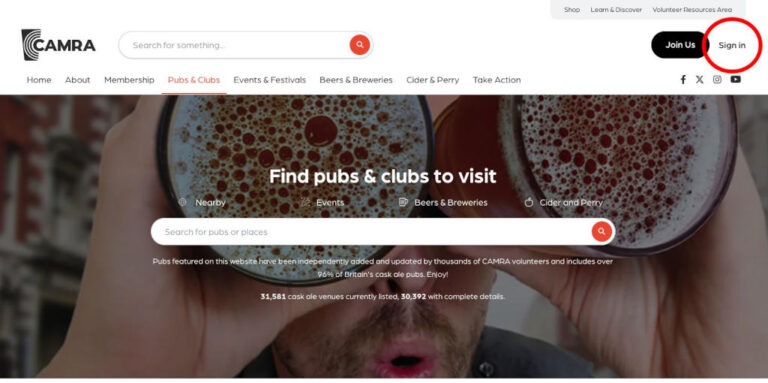

Once you’ve signed in, you will be able to submit beer scores. Firstly, you will need to find the pub and then you can add the scores for the beers you had there.
Pubs can be searched by name or location. If you have scores to enter for a number of pubs in the same town for instance, then searching by location will give you a list of all pubs there. This can make it easier finding the pubs you’ve been to. So in this example, we are going to search for pubs in Oswestry by typing “oswestry” in to the search bar and selecting Oswestry as the location.

This will bring up a list of all the pubs in that location. We can then scroll down the list until we find the pub we want to enter scores for. In this example we are looking for the award winning Bailey Head, so we will go down the list until we find that, and then click on it to bring up the pub details.

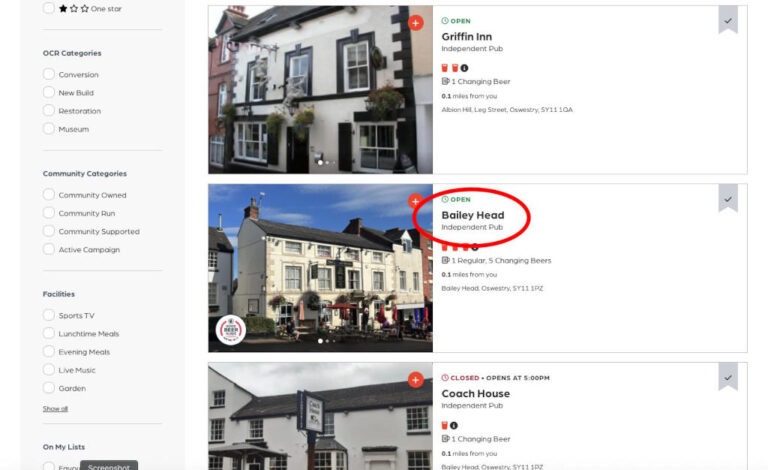
Once we have the pub details displayed, there should be a Beer Score button towards the top right if you are on a desktop computer. If on a mobile or tablet, scroll down until you get to the Current Beers section, and the Beer Score button should be just below.

Clicking on the Beer Score button should bring up the Submit Beer Score form. The only mandatory information on here is the date of your visit and the score you are giving. If you know the beer name and/or brewery name, then these can be entered too. Most members will enter these four pieces of information. If you also want to add a comment and note the price you paid, then they can be entered to.
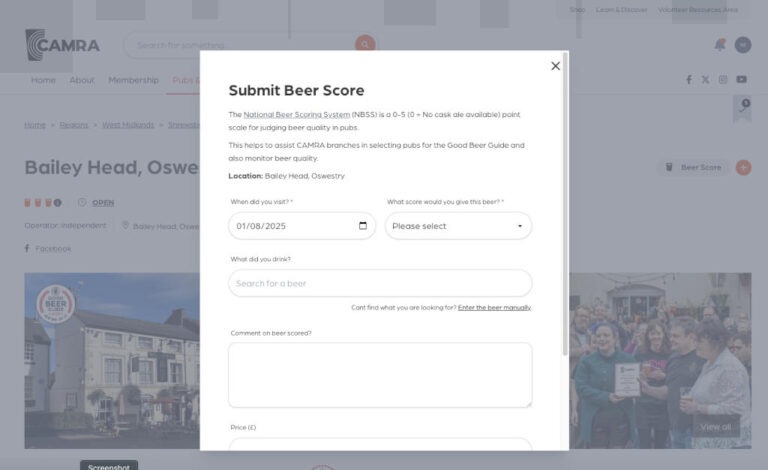
So, to enter the date of your visit, either by selecting the date and typing over it, or an easier way is to display the calendar by clicking on the calendar symbol (ringed in red on the screenshot below). Then the date can be selected from the calendar.

Once the correct date has been entered, click on the beer score dropdown. A list of all the possible beer scores from 0 to 5 will be displayed. Just select the score that you are giving the beer from the list.
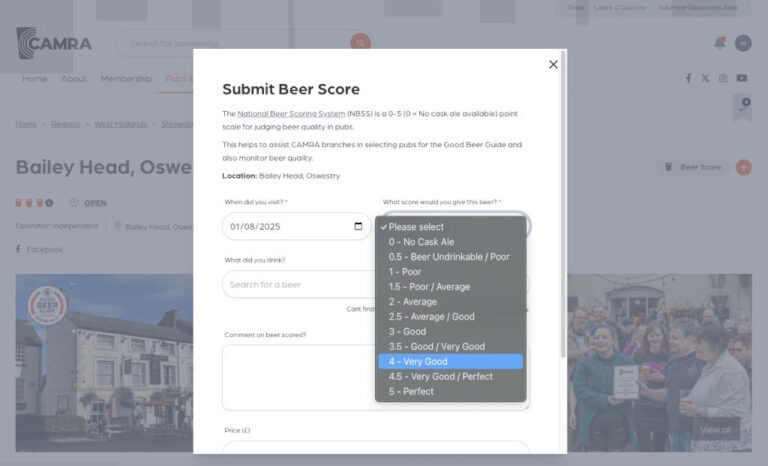
Once the score has been entered, you can either scroll down and click the Submit and Close button to submit your score, or you can opt to add further information, such as the brewery and beer name.
Start by clicking on the Search for a Beer box, and then the beer search screen will be displayed as follows:

The list will display some recent beers sold by he pub. If the beer you want to score appears in the list, select it and then you are ready to submit your beer score.
If the beer is not on the pub’s recent beer list, type in the brewery name, and another list will appear with common beers from that brewery. If the beer you want to score appears in the list, select it and then you are ready to submit your beer score.

If the beer is not on the list of common beers from that brewery, click on the Enter Manually button at the bottom. The Submit Beer Score screen will now have separate boxes to enter the brewery and beer name.
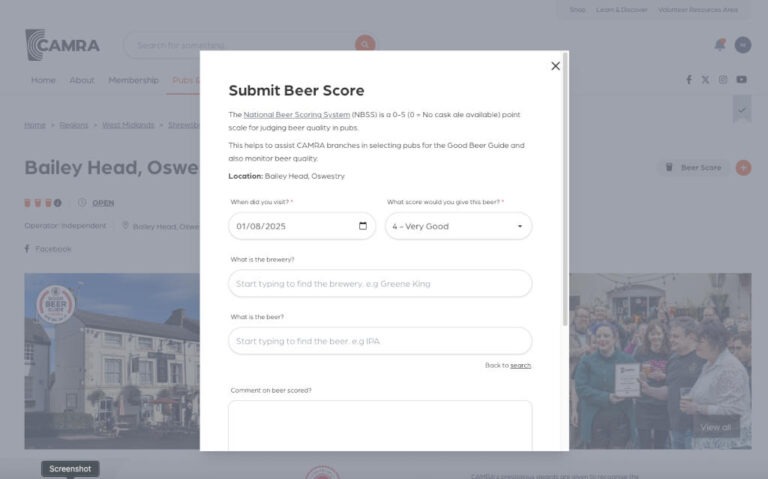
Start typing the brewery name in the brewery box, and if the brewery appears in the list below (as shown circled in red on the example below), click on the name in the list to confirm that is the brewery you are looking for.
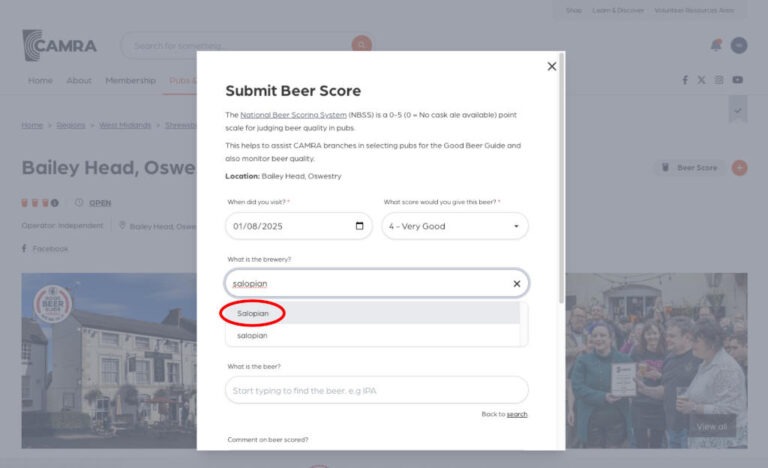
Clicking on the beer entry field below will then display a list of common beers from the brewery you selected. If the beer you want to score is on the list then just select it and continue.
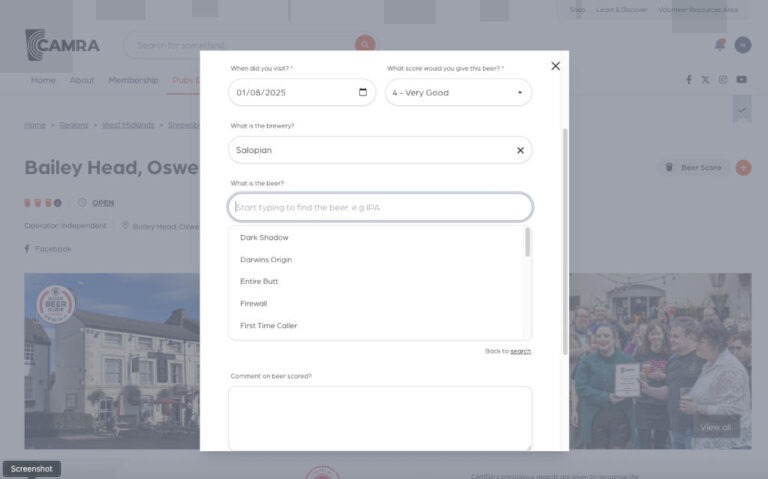
If you can’t find the beer, type in the name and it should appear in the list below (circled in red in the example below) with the words “Other not listed” after it. Just select this to confirm that you are entering a beer name that is not in CAMRA’s list of beers for that brewery.
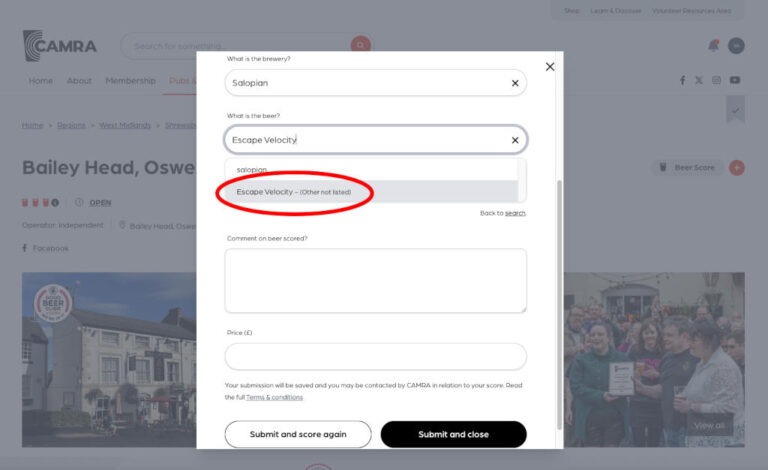
The price of the beer and a comment can also be entered if you wish but they are not mandatory. Then click the Submit Score button to send the score to the National Beer Scoring System (NBSS). If you want to submit more than one score for that pub, instead of clicking the Submit and Close button, click the Submit and Score Again button, which will submit the score but keep you on this screen to then enter the details of your next score.
When you finally click the Submit and Close button, a message will be displayed confirming that your score has been submitted successfully.

There are many more features of the pub guide but we’ve tried to just point out the basics of scoring a beer here. It may seem like quite a few steps to go through but with a bit of practise, you’ll be doing it without thinking! If you have any questions about the scoring system, or if you are struggling with recording your scores, please get in touch and we’ll try our best to help.
WhatPub and Good Beer Guide web app instructions kept here but hidden for nostalgia
WhatPub
Firstly, navigate to the WhatPub website by entering the address, www.whatpub.com, at the top of your Web Browser (e.g. Google Chrome, Edge, Safari, Firefox, etc.) on your smartphone, tablet or computer.
Once the WhatPub web page is displayed, you can search for a pub by entering the pub’s name and location in the search box. A list of options matching your search criteria should be displayed. Click on the correct pub to go into the pub’s details.

Once you’ve selected the pub from the list of search results, the pub’s details will be displayed. If you haven’t already logged in, the Submit Beer Scores box on the right will have a Member Login link as shown below. Otherwise, if you are already logged in, please skip the next two pictures.

Click on the Member Login link, and the Login screen should appear. Enter your CAMRA membership number and password to login to WhatPub. Note that the password is the same one that you use to log in to the main CAMRA website.

Once you’ve logged in, the pub details page will be displayed again with the Submit Beer Scores box showing the beer scoring information boxes.

Enter the date you visited the pub, the beer score, and the brewery and beer name if you know them, and then click on the Submit Score button. The score will then be saved into the National Beer Scoring System.

Once the score has been accepted, the Score, Brewery and Beer boxes will be cleared. You can now enter another score for that pub, if you drank different beers there.
If you now want to enter a score for a different pub, click on the red New Search button to search again, or click on the Nearby tab to get a list of pubs near to the one you are in on WhatPub.
Good Beer Guide Web App
The Good Beer Guide Web App runs in a Web browser just like websites. As mobiles, tablets and desktop computers all have Web browers, it means that the Web App can be used on all these devices, and on all operating systems.
As with WhatPub, you need to be a CAMRA member to enter beer scores in the GBG Web App. If you are not currently a member but would like to find out more about joining, please see the national CAMRA website.
Assuming you are a CAMRA member, firstly navigate to the Good Beer Guide Web App by entering the address, goodbeerguide.org.uk, at the top of your Web browser (e.g. in Google Chrome, Edge, Safari, Firefox, etc.) on your smartphone, tablet or computer.
The home page for the Web App should be displayed as seen below (note that all the screenshots below are from a desktop computer, so the Web App may look slightly different on a mobile or tablet).

To use the Web App to enter beer scores, you need to be registered with the App and then have your CAMRA membership number linked to the App. These only need to be done once, the first time you use the App. After that, you just need to make sure that you are logged in to the App to enable you to enter scores.
So to register with the Web App:
- Click on the Profile option, and on the next screen choose the Create Account button.
- You will then be prompted to enter your email, name and a new password (note that this is a different password to your main CAMRA account password).
- Once you’ve entered this information, accepted the T&C’s and clicked on the Create Account button, your Good Beer Guide Web App account should be created.
- You may have to validate your email address by entering a code sent to your email.
With the registration process complete, you can now link the App to your CAMRA account:
- Click on the Profile option again on the home page
- Next to the Member ID text there should be a button called Link CAMRA Account. Click the button.
- Enter your CAMRA membership number and membership password, and click the Link button
- On the Profile page, it should now show your CAMRA membership number next to the Member ID
Note that in various places in the App, you may see a Buy Subscription button. Paying for a subscription will give you access to more features in the App, but you don’t need a subscription to be able to enter beer scores. For more information on the benefits of a paid subscription, please see the Good Beer Guide App page on the main CAMRA website.
Once you have registered with the Web App and linked it to your CAMRA account, you are now able to enter beer scores whenever you like.
Search for a pub by first entering the place name in the Where To box, and then selecting the place name from the list. This will set the location.

For non-subscribers, the nearest 10 pubs to that location will then be shown. Subscribers will get a longer list displayed.

If the pub you are after is not in this list of 10, type the pub name in the Where To box, and this will display a list of all the pubs with that name near to the location you entered.

Select the pub from the list to display the pub details. Note that we’ve scrolled down a bit on the pub details page that we’ve displayed below, which is why only the bottom of the pub photo is visible.

Clicking on the Beer Scoring line will take you through to the Submit Beer Score page, where your beer score information can be recorded.

Enter the date that the score was made. Enter the score by dragging the blue bar left or right. If you want to enter details of the beer you are scoring, then enter the brewery in the Brewery box. This should produce a list and you need to select the correct brewery from the list. Then, clicking on the Beer box should bring up a list of common beers from that brewery. Either select the beer from the list, or type the name of it in the Beer box if it’s not in the list.

The price of the beer and a comment can also be entered if you wish. Then click the Submit Score button to enter the score in the National Beer Scoring System (NBSS). It seems like quite a few steps to go through but with a bit of practise, you’ll be doing it without thinking!
Good Beer Guide Mobile Apps
The Good Beer Guide mobile apps for Android and iPhone are no longer being supported, and although they might still work for the time being, it is recommended to use the GBG Web App instead in your mobile device’s Web Browser – see above.
More Information
For further details on beer scoring, please see the page on the National Beer Scoring System on the main CAMRA website by clicking the NBSS button below, or contact our branch’s Beer Scoring (NBSS) Coordinator using the email nbss@saws.camra.org.uk